Help
Getting Started
SquirrelStack is a suite of tools for online apps — analytics, help desk, CRM, uptime monitoring, and project management. This guide covers the essentials for setting up your account.
Creating Your Account
Sign up with your Google account at squirrelstack.app. Once signed in, you’ll land on your personal dashboard. From there you can configure your account in Settings.
Enabling Apps
Head to Settings > Apps to choose which tools you want to use. Available apps include Metrics, Help Desk, CRM, Monitor, Projects, and Ads. Only enabled apps appear in your navigation — you can turn them on or off at any time.
Installing the Tracking Script
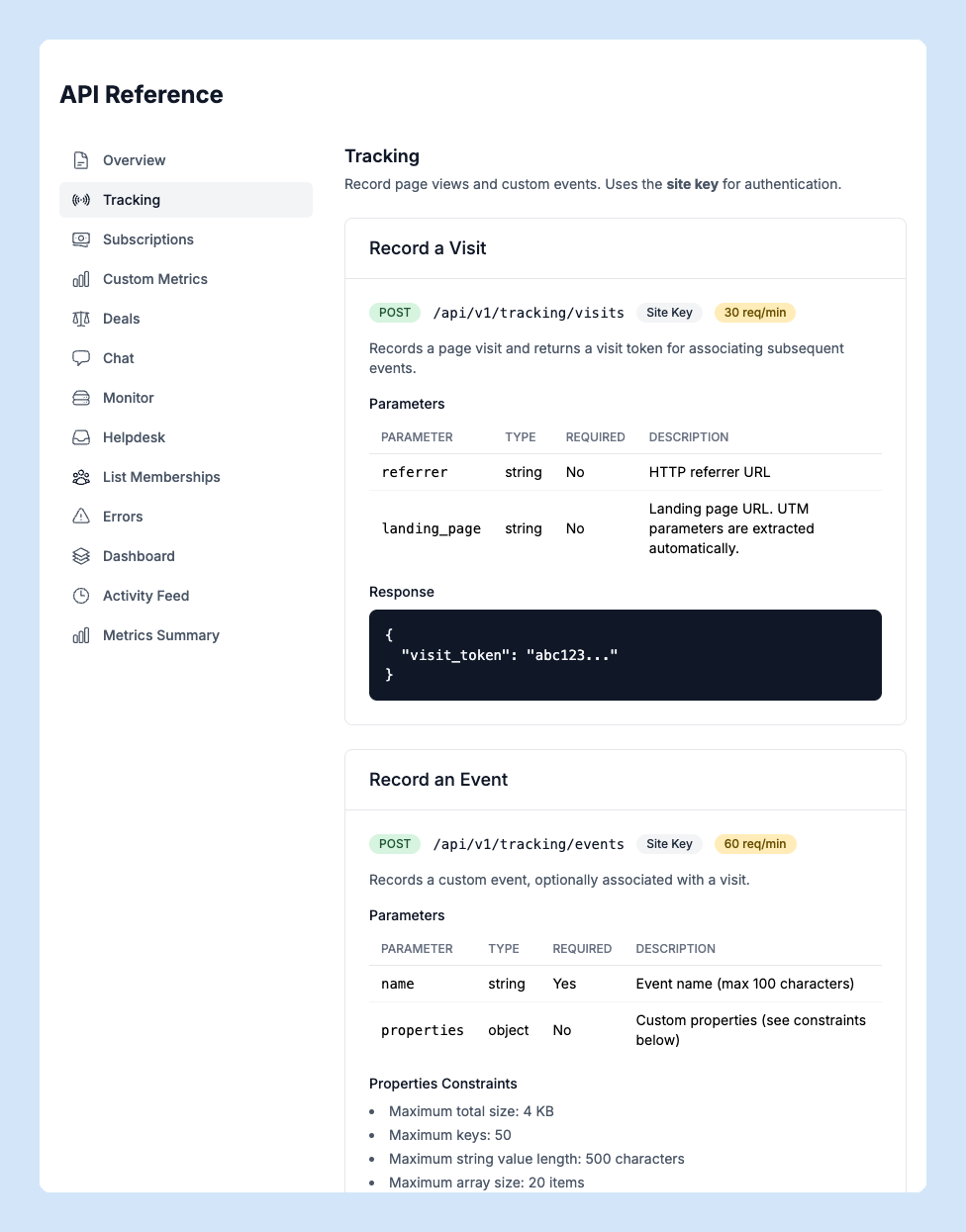
To start collecting analytics, add the SquirrelStack tracking script to your website. You’ll find your site key and the script snippet in API Reference > Tracking. Drop the script tag into your site’s <head> and page views will start appearing in Metrics immediately.
API Keys
Your account has two types of keys:
- Site key (
ss_*) — a public key used in the tracking script and chat widget. Safe to include in client-side code. - Secret key — used for server-side API calls (subscriptions, custom metrics, deals). Find it in Settings > API.
Never expose your secret key in client-side code. Use it only in server-to-server requests with the X-Api-Key header.
Inviting Your Team
Go to Settings > Team to invite colleagues by email. Each person signs in with their own Google account. Account owners can manage team members and set permissions for each member.
Next Steps
Once you’re set up, explore the sidebar to dive into each app. Every section of this help centre covers a specific tool in detail.