Help
Settings
The settings page lets you configure your SquirrelStack account. Only account owners can access most settings — regular team members can only manage their notification preferences.
General
The General tab is where you set your account name and website domain. Your account name appears throughout the app and in any shared pages (like status pages). The domain is used for analytics tracking and icon detection.
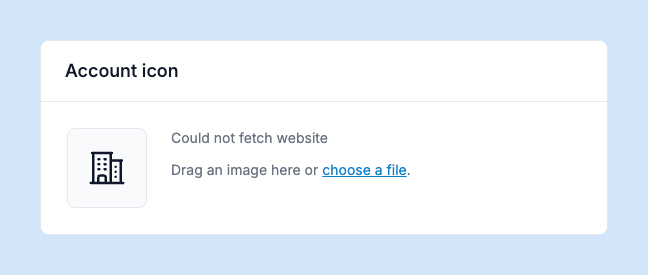
You can also upload a custom account icon, or let SquirrelStack automatically fetch your website’s favicon.
Team
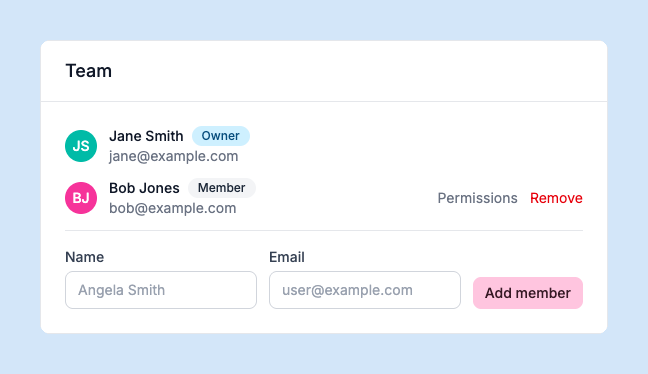
Invite people to your account on the Team tab. Each member signs in with their own Google account. Owners can add new members by name and email, and remove existing members (except other owners).
Apps
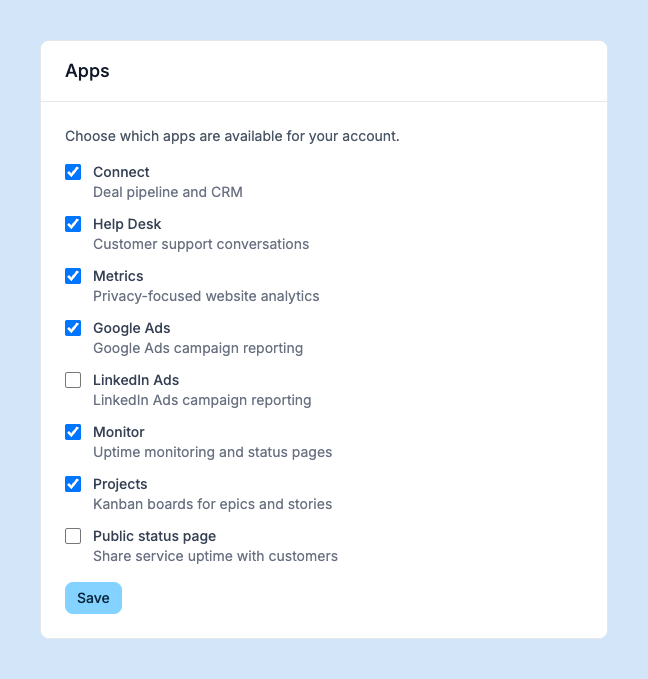
Choose which SquirrelStack apps are enabled for your account. Disabled apps won’t appear in the navigation. Available apps include:
- Metrics — privacy-focused website analytics
- Help Desk — customer support conversations
- Connect — deal pipeline and CRM
- Ads — Google Ads performance dashboard
- Monitor — uptime monitoring and status pages
- Projects — kanban boards for epics and stories
Notifications
Configure how and when you receive notifications. You can enable browser push notifications for real-time alerts about events like new helpdesk conversations or monitor downtime.
API
The API tab shows your secret API key for server-side integrations. Use this key with the X-Api-Key header when calling SquirrelStack’s API endpoints (subscriptions, custom metrics, deals, etc.).
Keep your secret key private — never expose it in client-side code. Your site key (for tracking and chat) is available in the API Reference docs.