Help
CRM
The CRM (called Connect in the app) helps you manage your sales pipeline, contacts, companies, and customer relationships. It ties together data from your help desk, subscriptions, and integrations into a single view.
Deals
Track sales opportunities through your pipeline. Each deal has a value, stage, expected close date, and assigned owner. Move deals between stages by dragging them on the board view, or update them from the detail page. Add notes and log activities to keep a record of every interaction.
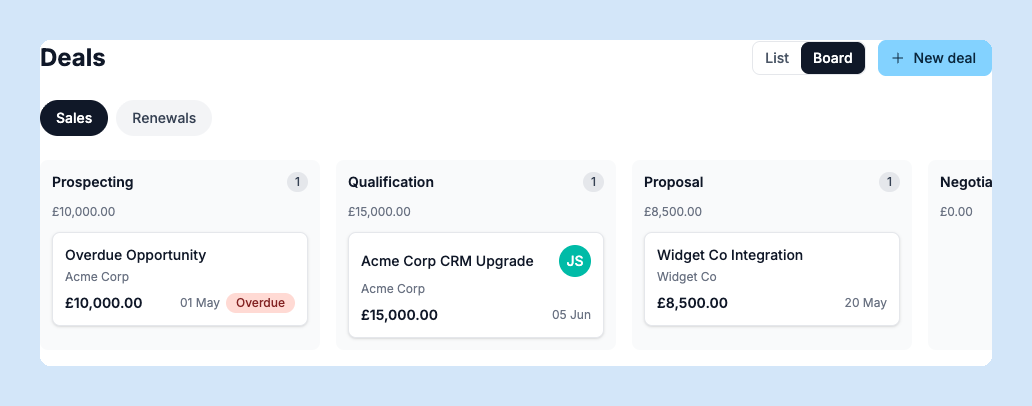
Pipelines
Customise your sales process by creating pipelines with your own stages. You can have multiple pipelines for different sales motions (e.g. new business vs. renewals). Manage pipelines from the CRM section in Settings.
Contacts
Contacts are the people you interact with — customers, leads, and prospects. Each contact has an email, name, company link, and full activity history. Contacts are created automatically from help desk conversations, subscription syncs, or the API, and you can also add them manually or via CSV import.
Companies
Companies group related contacts and subscriptions together. SquirrelStack matches contacts to companies by email domain. Each company page shows all associated contacts, subscriptions, deals, and conversation history.
Lists
Organise contacts into static or smart lists. Static lists are manually curated — add or remove contacts as needed. Smart lists use filters (like company, deal stage, or contact type) to automatically include matching contacts. Use lists for segmentation, outreach tracking, or reporting.
Subscriptions
View and manage all synced subscriptions from the CRM. See subscription status, plan, MRR contribution, and invoice history. Subscriptions are linked to companies for a complete customer view.
Bookings
Set up booking types with available time slots so contacts can schedule meetings with your team. Each booking type has its own public page that you can share. Bookings integrate with Zoom to automatically create meeting links.
Activity Feed
The activity feed shows a chronological log of all CRM activity — deals created, stages changed, notes added, and activities logged. Use it to stay on top of what your team has been doing.