Help
Help Desk
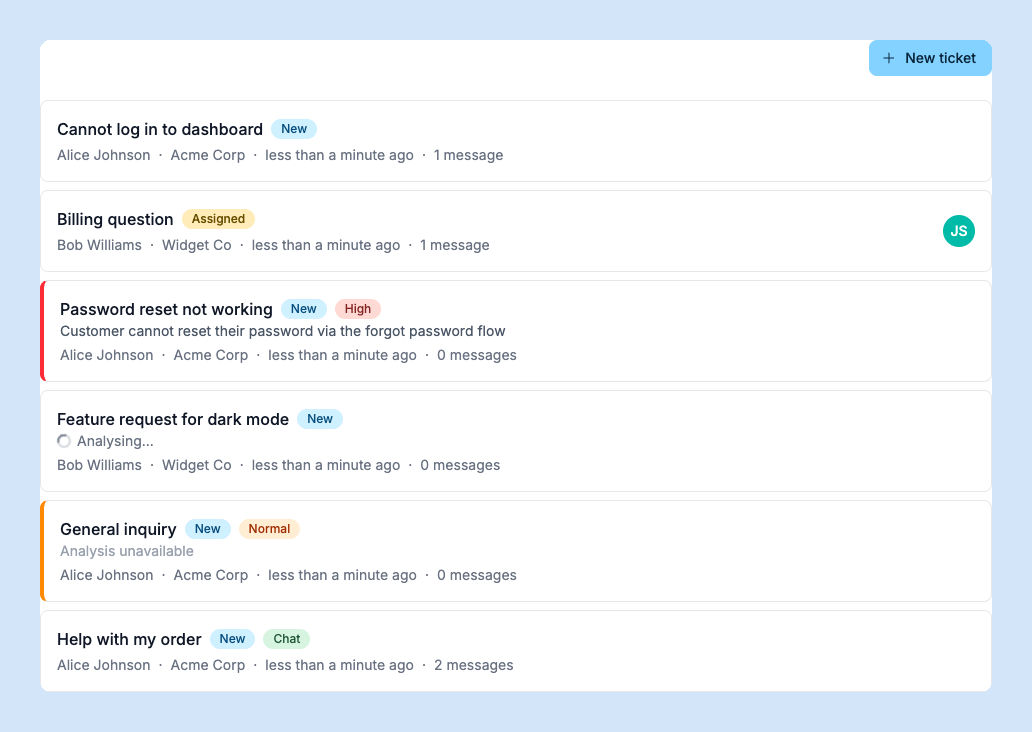
The Help Desk lets you manage customer support conversations in one place. Customers can reach you via email or the embedded chat widget, and your team replies from a shared inbox.
Conversations
All incoming messages appear as conversations in the Help Desk inbox. You can filter by status (open or closed), assign conversations to team members, and set priority levels. Click any conversation to see the full message thread.
Email Replies
Replies you send from the Help Desk are delivered as emails to the customer. SquirrelStack sends from your verified sending domain, so messages come from your own address rather than a generic one. Set up your sending domain in Settings > Help Desk.
Chat Widget
Embed a live chat widget on your website so visitors can start conversations without leaving the page. The widget is configured in Settings > Help Desk — you can customise the welcome message, colours, and position. Chat messages appear in the same inbox as email conversations.
Internal Notes
Add internal notes to any conversation for team-only context. Notes are visible to your team but never sent to the customer. Use them for handoff context, internal discussion, or tracking next steps.
Contacts
Every conversation is linked to a contact. When a customer writes in, SquirrelStack automatically matches them by email address or creates a new contact. You can view a contact’s full conversation history from the CRM.
Sending Domains
To send email replies from your own domain, add and verify a sending domain in the Sending Domains settings. Verification involves adding DNS records (DKIM and return-path) to prove ownership.